
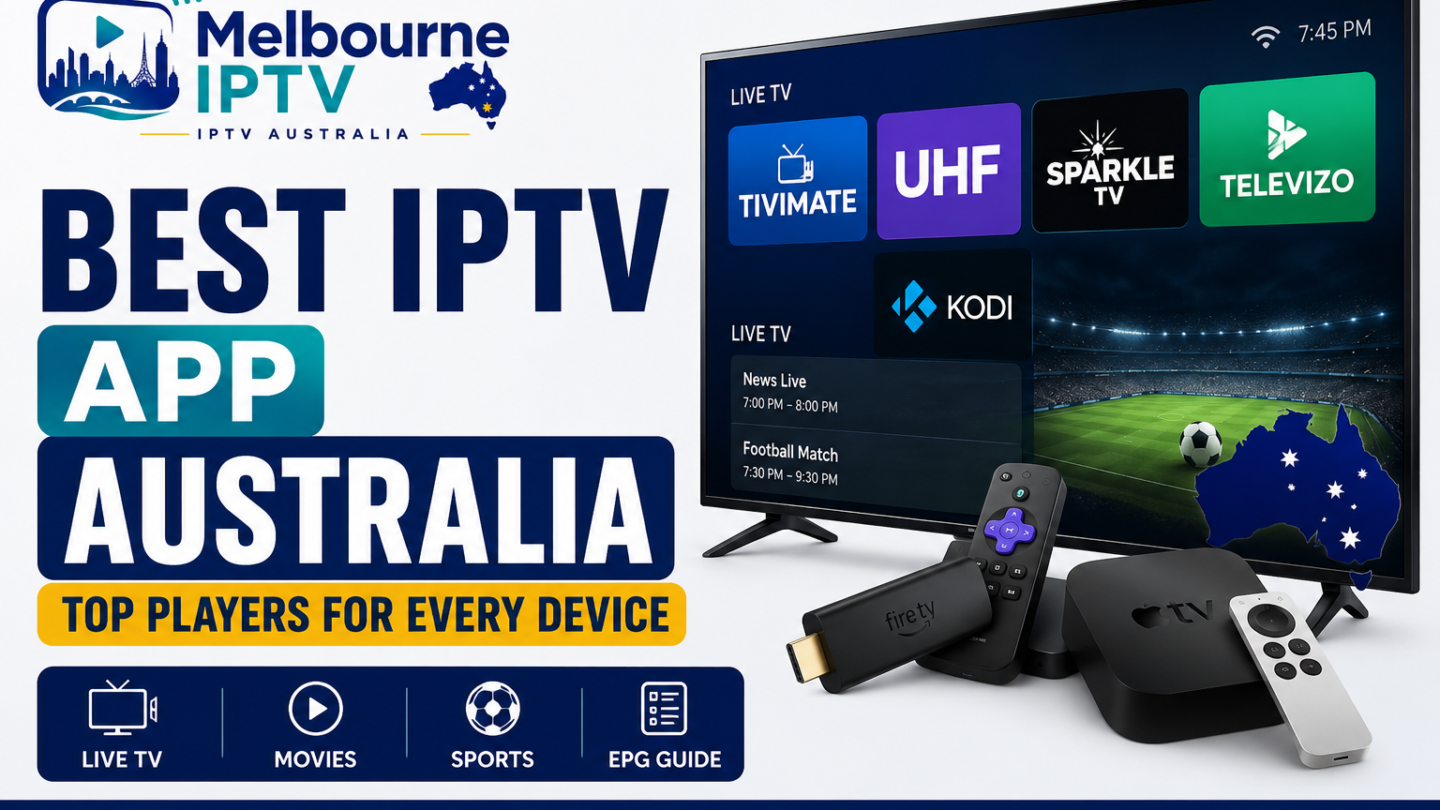
The best IPTV app in Australia depends mostly on the screen sitting in front of you. TiviMate suits Android TV and Fire TV, UHF feels natural on Apple TV, Sparkle TV handles recording well, and Televizo is handy on Android mobiles. Choose the device first. Then the app—not the other way around.
By: Melbourne IPTV Editorial Team
Editorial focus: IPTV players, device compatibility and straightforward home setup guidance
Reviewed: 28 July 2026
Last updated: 28 July 2026
Main keyword: best IPTV app Australia
Search intent: Find and compare an IPTV player for an Australian household
Trying to choose an IPTV app can feel strangely exhausting.
You open the app store. Five names look almost identical, three promise to be “the ultimate player”, another has a logo that appears to have been designed during a power cut—and nobody explains whether the app includes channels. Usually, it does not.
Then come the acronyms. M3U. EPG. DVR. Xtream-compatible login. XMLTV.
Wonderful.
It is perfectly reasonable to feel overwhelmed by this stuff, especially when you only wanted to watch television without turning the lounge room into an IT help desk. The reassuring bit is that choosing the best IPTV app in Australia becomes much easier when you stop searching for one universal winner.
There isn’t one. Not really.
The right choice depends on your streaming device, your authorised playlist format and whether you care about extras such as recording, multiple profiles or watching four streams at once—which sounds impressive, although also a little frantic.
For broader setup help, start at Melbourne IPTV or browse the IPTV Australia guides hub.
Best IPTV Apps in Australia at a Glance
| IPTV player | Best suited to | Main devices | Why people choose it | What may annoy you |
|---|---|---|---|---|
| TiviMate | Everyday lounge-room viewing | Android TV, Google TV and Fire TV | Clean TV guide, favourites, recording, catch-up and multiview | Not optimised for phones, tablets or Apple devices |
| UHF | Apple households | Apple TV, iPhone and iPad | Apple-friendly menus, profiles, playlist tools and device syncing | Advanced functions may require paid access |
| Sparkle TV | Recording and technical setups | Android TV, Google TV and Fire TV | DVR, timeshift, multiple sources and broad format support | The menu can feel busy at first |
| Televizo | Watching away from the television | Android phones, tablets and compatible TVs | Simple playlist handling, Chromecast and good mobile controls | Not quite as polished with a TV remote |
| Kodi IPTV Simple Client | People who enjoy configuring things | Windows, macOS, Android and Kodi devices | Flexible media-centre integration | Setup is less friendly. Considerably less friendly |
The comparison above is based on the apps’ official feature and compatibility information. TiviMate lists multiple playlists, favourites, search, recording, multiview, catch-up and parental controls. Sparkle TV highlights DVR, timeshift and support for several source types; UHF supports Apple devices and a range of playlist-management tools, while Televizo supports Android phones, tablets and TVs.
The uncomplicated recommendation
Start here:
Using Android TV, Google TV or a Fire TV Stick? Try TiviMate.
Using Apple TV? UHF is the obvious first stop.
Need proper recording or timeshift controls? Look at Sparkle TV.
Mostly watching on an Android phone or tablet? Televizo makes sense.
Already living inside Kodi? Use IPTV Simple Client and enjoy the menus. So many menus.
First, What Is an IPTV App?
An IPTV app is a media player that displays and plays streams from a compatible source.
It is not necessarily an IPTV subscription.
That tiny distinction causes an absurd amount of confusion. Buying a premium player normally unlocks app features—it does not automatically provide sport, television stations, films or an enormous library of mysterious channels from every continent.
TiviMate explicitly states that it is a media player only, that users must add their own playlists and that its premium upgrade covers application features rather than content. Sparkle TV and Televizo publish similar warnings.
Your setup usually contains two separate pieces:
- The player: the software installed on your television, mobile or streaming box.
- The source: the authorised playlist, account or service supplying the content.
Think of the player as a television cabinet. The source is what gets placed inside it. Except cabinets rarely produce login errors at 7.39 pm, moments before the opening bounce.
Why This Decision Feels Bigger Than It Is
1. Players and subscriptions get bundled together in people’s heads
This is the first tangle.
A website may talk about “buying an IPTV app” when it actually means purchasing content access. Another page may review a player but show screenshots filled with channels, creating the impression those channels are included.
They usually aren’t.
Clear fix: get your authorised service details before buying a premium app. Ask which connection method it uses:
- M3U or M3U8 playlist;
- Xtream-compatible login;
- portal address;
- XMLTV programme-guide link;
- a provider-specific application.
Then choose an app which supports that method. In that order.
2. Device names are needlessly vague
“Smart TV” tells you almost nothing.
A Samsung television may use Tizen. An LG television generally uses webOS. A Sony or TCL model might run Google TV, while a separate Apple TV box has its own operating system entirely. They are all smart televisions and yet, app-wise, they live on different planets.
Clear fix: check the device operating system before comparing apps.
- Android TV, Google TV or Fire TV: TiviMate or Sparkle TV.
- Apple TV, iPhone or iPad: UHF.
- Android mobile: Televizo.
- Windows or macOS: Kodi may work, especially for existing Kodi users.
- Samsung or LG TV: search the official television app store and confirm playlist compatibility before paying.
TiviMate’s official site says its app is intended for Android TV devices and is not optimised for phones or tablets. UHF’s current App Store listing supports iPhone, iPad and Apple TV.
3. Every feature suddenly sounds essential
Recording sounds essential.
Then multiview sounds essential. Profile syncing. Frame-rate matching. Catch-up. Parental controls. Custom EPG offsets, which sounds like something from a weather satellite.
You may need some of these. You probably do not need all of them on day one.
Clear fix: begin with four basics:
- stable playback;
- a readable programme guide;
- favourites;
- sensible remote-control navigation.
Test those first. Upgrade later, once you know what is genuinely missing rather than what a feature page told you to desire.
4. Buffering gets blamed on whichever app is open
A frozen stream produces instant fury. Understandably.
The picture stops. Audio keeps going for half a second, then repeats a tiny mechanical syllable—“go-go-go-go”—while the loading circle spins like it has nowhere else to be.
But the player is only one possible cause.
Your home Wi-Fi, evening congestion, an older streaming stick, other household downloads, playlist-server performance and internet-plan capacity can all affect playback. NBN Co notes that actual speed can be influenced by the in-home setup, time of day, network technology, provider configuration and the number of active people and devices.
Clear fix: test before app-hopping.
- Try the same stream close to the router.
- Use Ethernet where possible.
- Pause game downloads and cloud backups.
- Restart the streaming device.
- Compare one alternative app using the same channel.
Changing five things at once feels productive. It isn’t—you lose the trail.
5. Unofficial downloads create another layer of unease
Popular app names are sometimes copied, misspelled or packaged into unofficial downloads. A logo may look right while the developer name is completely different.
Clear fix: use the official device app store or the developer’s verified website. Check who published the app, its recent update history and what permissions it requests.
As one recent example, Televizo’s Google Play listing shows an update on 13 June 2026, with improved search, a software-processing option and a fix relating to Android 17 Beta. The listing also identifies the app as a media player rather than a content supplier.
Best IPTV App for Different Profiles
Best for most Android TV users: TiviMate
TiviMate feels closest to the old-fashioned television guide many people already understand. Channels sit in a list. The guide stretches across the screen. Favourites are nearby. You move around with the remote and, mostly, it behaves like television rather than a mobile app enlarged until the buttons become dinner plates.
Its official feature list includes:
- several playlists;
- channel search;
- favourites;
- recording;
- catch-up;
- multiview;
- parental controls;
- interface personalisation.
It remains our starting recommendation for Android TV, Google TV and Fire TV households. It is not designed as a phone-first app, though.
Best for Apple TV households: UHF
UHF fits more naturally into an Apple setup.
Its current App Store listing includes support for M3U8 and Xtream-compatible playlists, global search, catch-up, playlist customisation, multiple audio tracks, subtitles and profile support. It also offers Apple TV, iPhone and iPad compatibility.
Profiles deserve a small mention. They are useful when several people use the same television and nobody wants their viewing progress tangled together like earphones in an old pocket.
UHF is especially sensible when you already use Apple devices and prefer menus that follow familiar Apple design habits.
Best for recording: Sparkle TV
Sparkle TV is the more technical, tool-filled option.
The app supports Android TV, Google TV and Fire TV, plus common source formats including M3U, Xtream-compatible connections and XMLTV guide data. Its Plus feature set includes DVR recording, timeshift, multiple sources, favourites and multiview. It also supports systems such as HDHomeRun, Jellyfin, Plex and TVheadend.
That flexibility is brilliant and slightly intimidating.
Choose Sparkle TV when recording matters, when you use more than one source or when you enjoy adjusting the machine until it is exactly right. Not approximately right. Exactly.
Best for Android phones and tablets: Televizo
Televizo is easier to recommend when viewing happens on a phone, tablet or mixed set of Android devices.
Its Google Play listing includes multiple playlists, EPG support, catch-up, Chromecast, sorting, search, parental controls, favourites and audio or subtitle selection. Google Play reports more than five million downloads, although download totals should not be mistaken for proof that an app is perfect for your particular setup.
Televizo can work on televisions too, but its mobile flexibility is the real draw.
Best for people who enjoy tinkering: Kodi
Kodi’s IPTV Simple Client is a PVR add-on for IPTV support within Kodi. The official Kodi listing identifies the Omega release as version 21.11.0, dated 2 July 2025.
Kodi is powerful.
It is also a little like building a bookshelf when you only wanted somewhere to place one paperback. Rewarding for the right person, exhausting for everybody else.
Free or Premium: Which Offer Makes Sense?
Use the free version first, where one is available.
That is not stinginess. It is basic testing.
Confirm that your playlist imports, the guide loads and video plays properly before buying a subscription or lifetime upgrade. Premium plans are most useful when you genuinely require:
- DVR recording;
- timeshift;
- multiview;
- several playlists;
- profile synchronisation;
- advanced playlist editing;
- parental controls;
- fewer ads or watermarks.
Remember, again because this gets muddled: paying for premium player features does not purchase content rights. TiviMate and Sparkle TV clearly separate app functionality from supplied content.
How Much Internet Speed Does IPTV Need?
There is no magical Australian number that guarantees perfect playback. Still, these targets provide a useful starting point.
| Stream type | Practical available speed |
|---|---|
| Standard definition | 5–10 Mbps |
| HD | Around 15 Mbps or higher |
| Full HD in an active household | 20–25 Mbps or higher |
| 4K | At least 25 Mbps, with spare capacity preferred |
| Several simultaneous streams | Add capacity for each active screen |
These figures are planning guidelines, not promises. Connection stability often matters more than a huge speed-test result.
NBN Co says its higher-speed options are intended to support smoother high-resolution streaming and more simultaneous household activity, but it also cautions that real performance depends on factors including equipment, access technology, peak-time use and the retail provider’s network setup.
A 500 Mbps plan with poor Wi-Fi can still produce a miserable television experience. A stable wired connection at a much lower speed may feel beautifully boring—and boring is excellent when watching live sport.
See our IPTV buffering Australia guide for a more detailed troubleshooting sequence.
A Simple Installation Process
Step 1: Identify the exact device
Find the model number and operating system. Do not stop at “Samsung TV” or “Android box”, because that information may be too broad.
Step 2: Check the login type
Confirm whether your authorised source supplies M3U details, Xtream-compatible credentials, a portal or another supported connection.
Keep those details private.
Step 3: Install one player
One.
Not four, not seven, not every app that appears beneath a YouTube tutorial. Install the most appropriate first option and test it properly.
Step 4: Add the playlist carefully
Copy credentials rather than manually typing long addresses where possible. A single misplaced character can turn a straightforward setup into forty minutes of rage.
Step 5: Create a small favourites list
Add the channels you actually watch. Ten is enough to begin.
You can organise the other 4,000 entries later. Or never.
Step 6: Test during the evening
A playlist that works perfectly at 11 am may perform differently during a busy evening period. Test live streams, channel changes, subtitles and the programme guide at the times you normally watch.
For device-specific instructions, follow our IPTV setup Australia guide.
A Composite Living-Room Test
This is a fictionalised example, built to reflect common setup problems rather than one specific customer.
The kettle clicks. The room is dim except for that bluish rectangle above the cabinet. A live match begins in twelve minutes and the remote suddenly feels like an object recovered from an archaeological dig.
App A opens quickly, but its guide text is tiny. Changing channels requires four clicks and a prayer.
App B takes longer to import the playlist. Then it settles. Favourites appear on the first screen, the remote buttons make sense and the programme guide can be read from the sofa.
App A technically has more functions.
App B wins.
Use this same ten-minute check:
- Did the playlist import without an error?
- Did the EPG populate?
- Can you change channels quickly?
- Is the text readable from your normal seat?
- Do audio and subtitles work?
- Does the stream recover after switching channels?
- Could somebody else in the house use it without instructions?
The best IPTV app is not the one with the most dramatic feature page. It is the one nobody complains about.
Content Rights in Australia
The app itself is only part of the legal picture.
In Australia, copyright material can generally be used when you have permission, an applicable licence or a relevant legal exception. The Australian Attorney-General’s Department recommends checking licensing terms and obtaining permission from the copyright owner where no applicable licence exists.
Use IPTV players with:
- material you own;
- public streams released by the rights holder;
- channels provided through a legitimate subscription;
- content you otherwise have permission to access.
An offer promising almost every premium sporting event, subscription network and new film for a price that barely covers lunch should trigger caution. Not excitement. Well, perhaps both—but mainly caution.
Read Is IPTV legal in Australia? for a clearer explanation of players, subscriptions and content rights.
Evidence to Check Before Installing an App
Trust visible proof, not glittery adjectives.
Look for:
- an official developer or app-store listing;
- a clear explanation of whether content is included;
- supported operating systems;
- recent software updates;
- privacy disclosures;
- a proper help section;
- supported playlist formats;
- transparent premium features;
- a recognisable developer identity.
One sign matters more than people think: reputable players frequently say, clearly and repeatedly, that they do not provide channels. TiviMate, Sparkle TV, UHF and Televizo all make that distinction in their official information.
Best IPTV App Australia Checklist
Before committing to a player, check the following:
- I know the exact operating system on my device.
- I downloaded the app from an official source.
- It supports my authorised login format.
- I understand that the player may not include content.
- I tested the free version first, where available.
- The programme guide loads properly.
- Live playback works during the evening.
- The interface is readable from my normal seat.
- Other people in the house can use it.
- I know which features require payment.
- I stored login details somewhere secure.
- I resisted installing six additional apps. Heroic.
Frequently Asked Questions
What is the best IPTV app in Australia?
TiviMate is our strongest general recommendation for Android TV, Google TV and Fire TV. UHF is better suited to Apple TV, while Televizo is a useful choice for Android mobile viewing. Sparkle TV stands out when recording and timeshift are priorities.
Is there one IPTV app that works on every device?
Not neatly. Some players support several platforms, but device-specific apps generally provide a better experience. Choose according to the operating system rather than trying to force one app across every screen.
Does an IPTV app come with channels?
Usually not. TiviMate, Sparkle TV, UHF and Televizo all describe themselves as players that require users to add their own content or playlists.
Can I use TiviMate on an iPhone?
TiviMate says its app is intended for Android TV devices and is not optimised for phones or tablets. An Apple-focused player such as UHF is a more natural fit for an iPhone or Apple TV.
Which IPTV app is best for Fire TV Stick?
Begin with TiviMate if you want a familiar programme-guide interface. Sparkle TV is worth considering when DVR, timeshift and multiple sources matter more.
Why does the stream buffer when my internet is fast?
A speed-test number does not show the entire connection story. Weak Wi-Fi, peak-time congestion, hardware limitations, other active devices or problems with the stream source may still cause interruptions. NBN Co identifies home equipment, concurrent users and time of day among the factors affecting experienced speeds.
Is using an IPTV player legal?
A player is general-purpose software. The important issue is whether the content has been supplied and accessed with appropriate permission or licensing. The Australian Attorney-General’s Department provides general information on copyright permission and statutory licences.
Choose Less, Test More
You do not need to study every IPTV app ever released.
Honestly, please don’t.
Match the player to the device. Confirm the playlist format. Install one app, create a short favourites list and test it at the time you normally watch television.
For most Android TV or Fire TV homes, begin with TiviMate. For Apple TV, start with UHF. Pick Sparkle TV when recording matters and Televizo when mobile Android viewing is the priority.
Simple can feel suspicious when the internet keeps insisting everything must be optimised, upgraded and turned into a “complete entertainment ecosystem”. Ignore the noise for a moment.
One device. One authorised source. One dependable app.
That is enough.
For help choosing a compatible player, visit Melbourne IPTV and include your device model, operating system and connection type.